
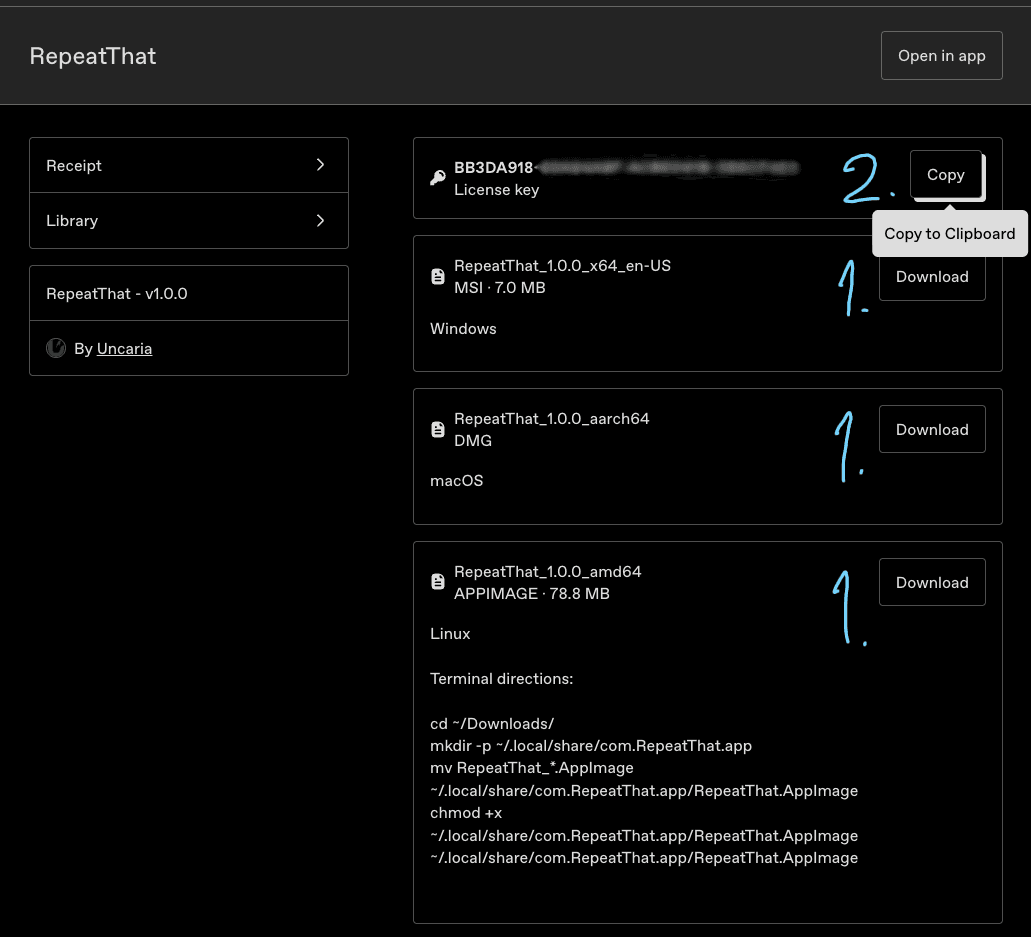
Step 1: Download your operating system's version, install and run RepeatThat
Step 2: Click Copy to save the license key to your clipboard

Step 3: Read through the EULA
Step 4: Toggle I agree
Step 5: Paste your license key
Step 6: Verify the key
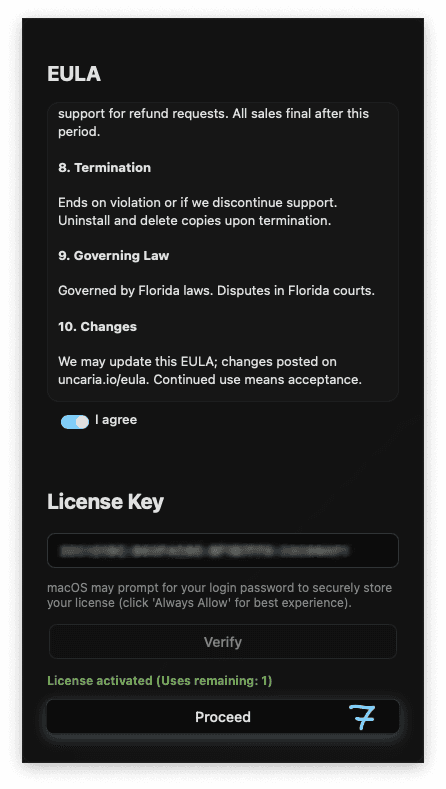
Step 7: Click to Proceed
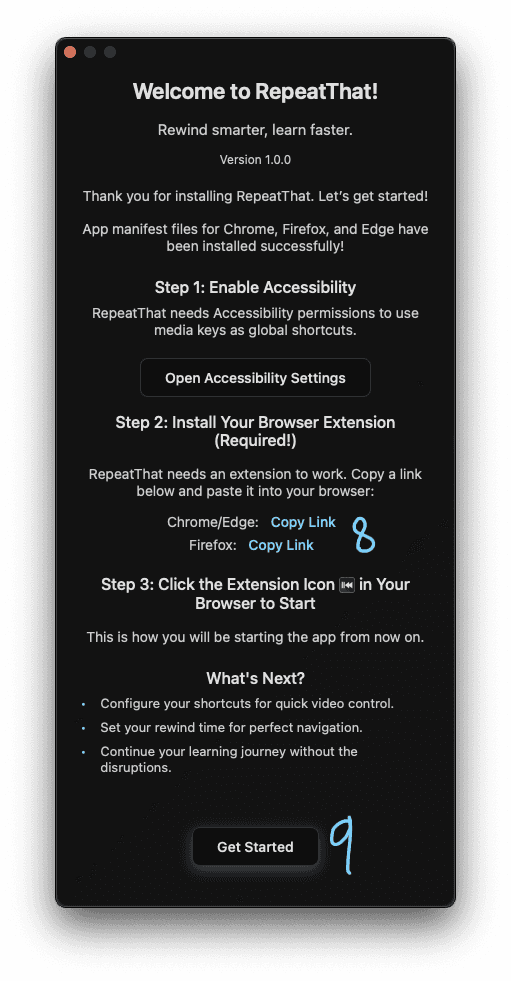
Step 8: Click to copy the URL for extension of your preferred browser
Step 9: Click to exit this window
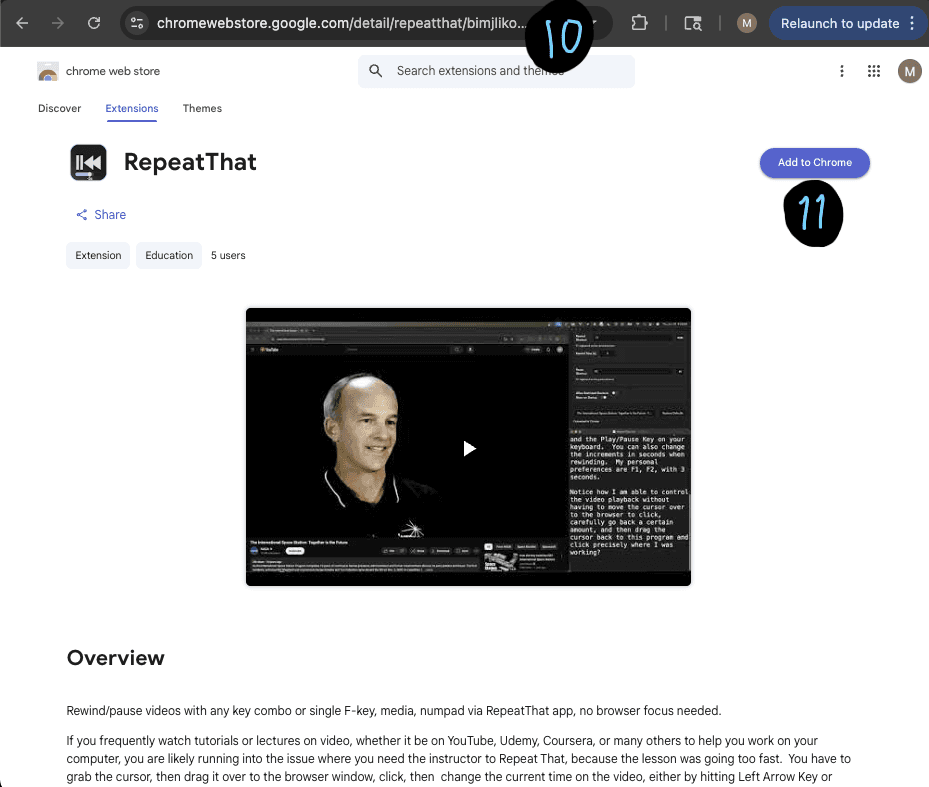
Step 10: Paste the URL and go
Step 11: Click to add the extension to your browser
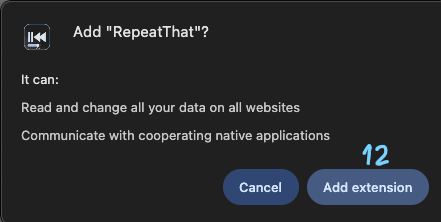
Step 12: Click Add extension
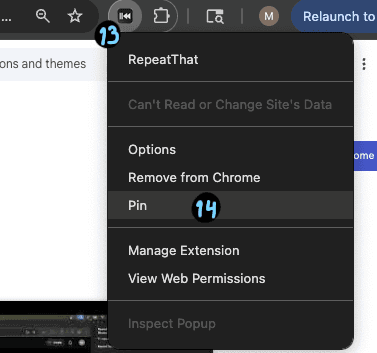
Step 13: Right click the extension icon
Step 14: Click Pin, to keep the extension icon visible at all times

Step 15: Click on the extension icon to start the main program
This is how you will be opening RepeatThat from now on
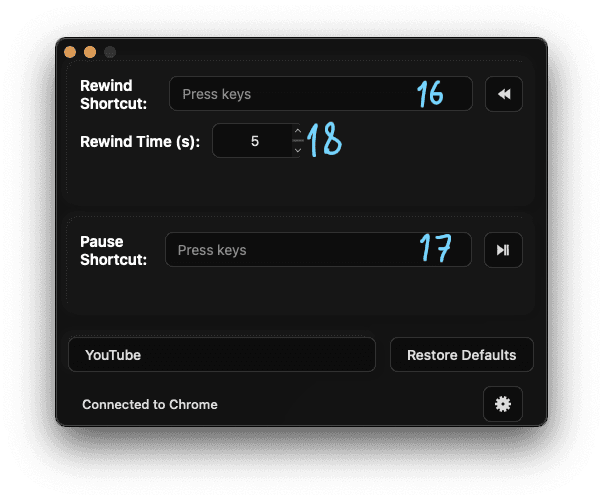
This is the main program
Step 16: Enter a hotkey for rewinding
Step 17: Enter a hotkey for pausing
Step 18: Adjust by how many seconds should the video go back
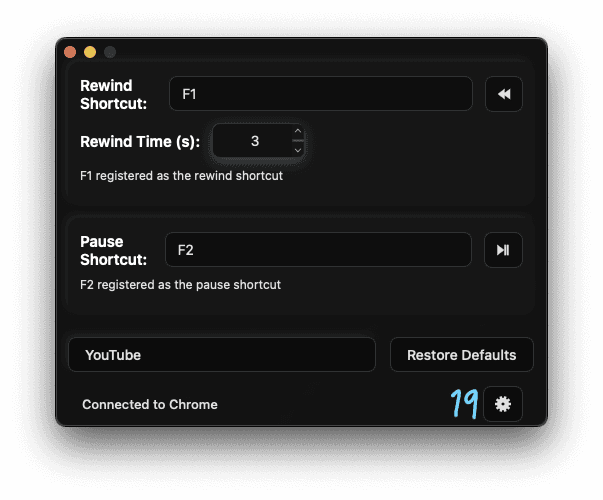
Once you are comfortable with your configuration,
Step 19: Click on the settings button
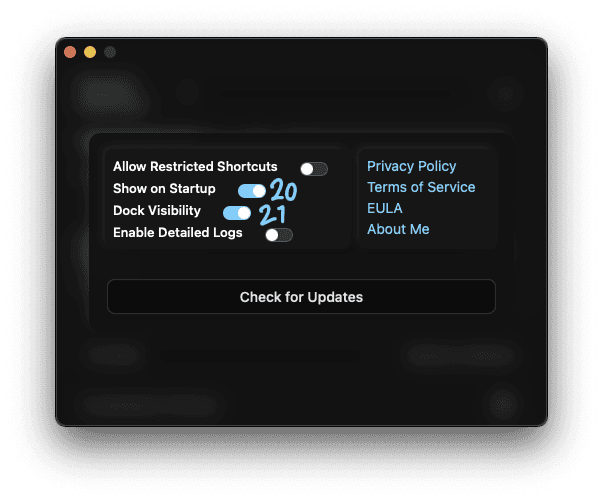
Step 20: Toggle off Show on Startup
Step 21: Toggle off Taskbar/Dock/Dash Visibility
Toggle these off so when you start RepeatThat, the app launches in the background
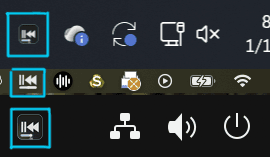
RepeatThat runs in the background
If you need to change a setting, just click on the icon in the system tray